Restaurant work, in detail

Inventory, purchasing & labels

Follow the products your restaurant buys, counts, uses and labels.

Prepare units, recipes, vendors, stock locations, the selected label source and the exact printer and media configuration.

Find the work you need to do.

HE POS

Inventory, counts & recipes

Full Platform; also HE POS package

Count stock and explain the difference.

Maintain ingredients and recipe relationships, review expected stock, submit inventory counts, and record authorized adjustments, waste and transfers. Review discrepancies before acting on them.

Before you use it: Set up units, recipes, stock locations and the people responsible for counts.

Explore HE POS in detail →

HE POS

Purchasing & receiving

Full Platform; also HE POS package

Follow stock from purchase order to receipt.

Prepare vendor purchase orders, edit their lines and record partial or completed deliveries with the quantities actually received. Keep receipt and correction history available for inventory and back-office review.

Before you use it: Prepare vendors, products and units. A receipt is distinct from an approved supplier bill or payment.

Explore HE POS in detail →

HE Label AI

Item catalog & import

Full Platform; also HE Label AI package

Prepare a label item with the right source.

Create and review items, use starter libraries, and import or match a selected POS catalog through its supported source binding.

Before you use it: Select the correct source and review imported values. An import, a later rematch and a manual override are different actions.

Explore HE Label AI in detail →

HE Label AI

Templates & versions

Full Platform; also HE Label AI package

Control the format your kitchen uses.

Create or duplicate a label layout, review date and allergen fields, publish a version and manage template rollout or rollback.

Before you use it: Confirm label dimensions and the restaurant’s content, shelf-life and allergen rules.

Explore HE Label AI in detail →

HE Label AI

Easy Print

Full Platform; also HE Label AI package

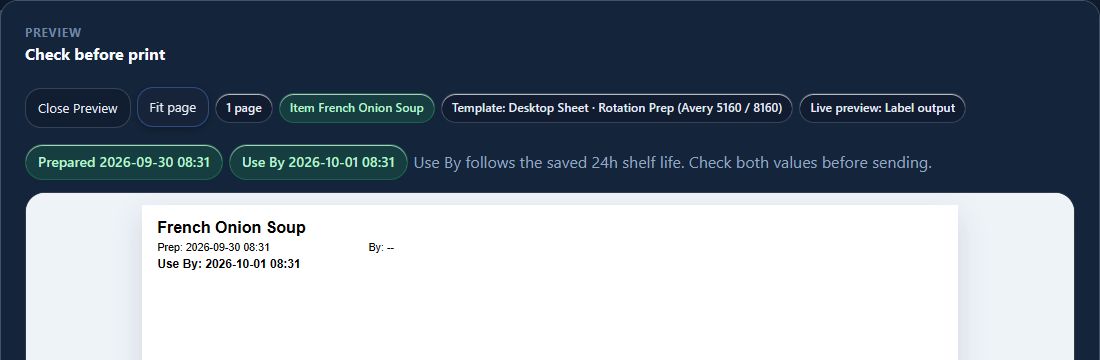
Review the exact job before printing.

Choose an item, template, quantity and print options. Prepare the job and inspect the preview before using the configured output path.

Before you use it: Check dates, content, station and printer. A preview is distinct from confirmed physical output.

Explore HE Label AI in detail →

HE Label AI

Printers & media

Full Platform; also HE Label AI package

Match the output to the actual equipment.

Use the qualified office-sheet, Brother or Zebra-compatible ZPL configuration as applicable. QZ-assisted printing requires its supported setup.

Before you use it: Confirm the exact printer, connection, stock size and a physical sample; Bluetooth and every printer model are not universally supported.

Explore HE Label AI in detail →

HE Label AI

Print history & issue records

Full Platform; also HE Label AI package

Know what was prepared, printed or reprinted.

Review job status, print history, sheet positions and attributable issue records. Use an exact approved prior output for a controlled reprint.

Before you use it: Keep operator and station context. A submitted job alone does not establish successful physical printing.

Explore HE Label AI in detail →
HE Label AI

Staff & location scope

Full Platform; also HE Label AI package

Keep labels with the right kitchen.

Manage the permitted staff, locations, item sources and station defaults for label work.

Before you use it: Assign authorized administrators and verify the selected location before a rollout.

Explore HE Label AI in detail →

Inspect the actual software.

Demo restaurant. Open a capture at full size; its caption identifies the task and any material limitation.

The next handoff

See what carries forward.

Follow the source, the receiving app and the person responsible for the next decision.

Explore the connected journey →

Choose the coverage that fits.

Full Platform; also HE POS package · Full Platform; also HE Label AI package.

Compare packages and current availability →
Next step

One restaurant account. The whole operating day.

The Full Platform brings eight base applications and onboarding into one restaurant account. Apply to become a Launch Partner or book a walkthrough of the workflow you want to improve first.

Keep serving through an outage Supported POS and HETable workflows continue on the installed Hybrid Windows computer. Separate tablets and connected services need internet.
Roll out one workflow at a time Start with the clearest operational need, prove it with the team, and expand without creating another account system.
One sign-in for approved apps Each person sees only the restaurants, locations, and HospiEdge apps their account is allowed to open.